Rentals and Handover
A rental in Dead Simple Auto runs through a fixed lifecycle: you quote it, reserve it, hand the car over, the guest drives, the car comes back, and you close it out. This chapter covers that lifecycle, the rental detail page and its panels, and the handover machinery — the agreement, the eligibility gate, condition photos, and self-service checkout.
The Rentals page
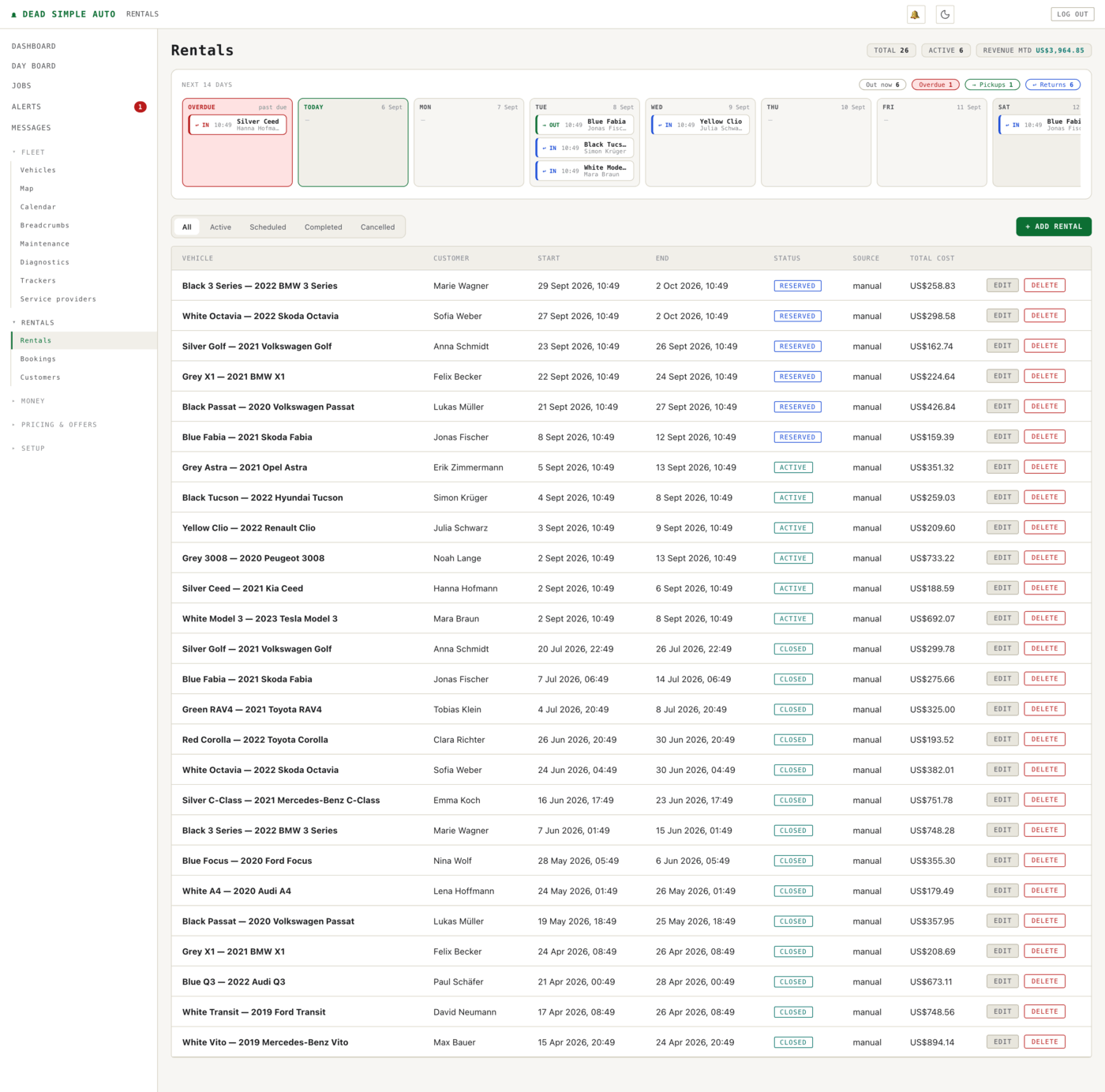
Open Rentals → Rentals in the left navigation. The page opens with a fourteen-day strip showing every pickup and return coming up, with counters for cars out now, overdue returns, pickups and returns. An overdue return is pulled forward into a red card at the front of the strip — it does not hide.
Below the strip is the full rental list: vehicle, customer, start, end, status, source and total cost. Tabs filter by status — All, Active, Scheduled, Completed, Cancelled — and the status badges (Reserved, Active, Closed) tell you where each rental sits in its life. + Add Rental creates a new one.
The rental detail page
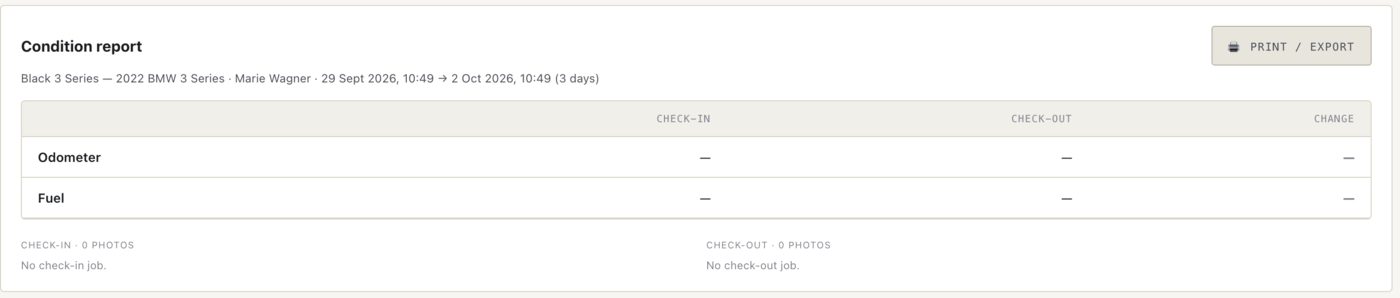
Click any rental to open Rental Trip Details. The page leads with the condition report, then the rental’s core facts and a block of actions.
The condition report compares check-in against check-out: odometer, fuel, and the photos taken at each end, with the change between them. Before the pickup and return jobs have run, it says so plainly — “No check-in job”, zero photos — rather than showing you blanks that look like data.
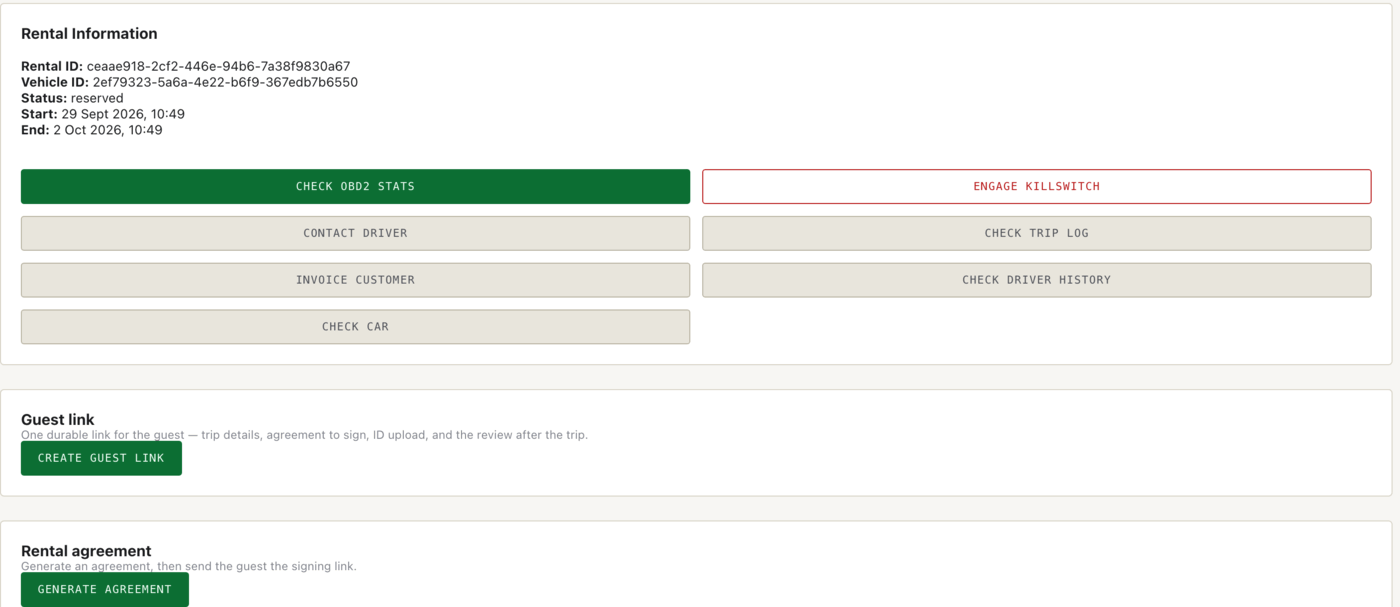
Under Rental Information sit the actions: check the car’s live OBD2 stats, engage the killswitch, contact the driver, pull the trip log, invoice the customer, check the driver’s history, and jump to the car itself with Check Car. Below that are the guest link — one durable link the guest uses for trip details, signing, ID upload and the post-trip review — and the rental agreement.
Invoice
Invoice Customer builds the invoice from the rental: base cost, any expenses, and the balance due. You log payments manually — amount, method, reference — and the customer-owes figure updates as you do.
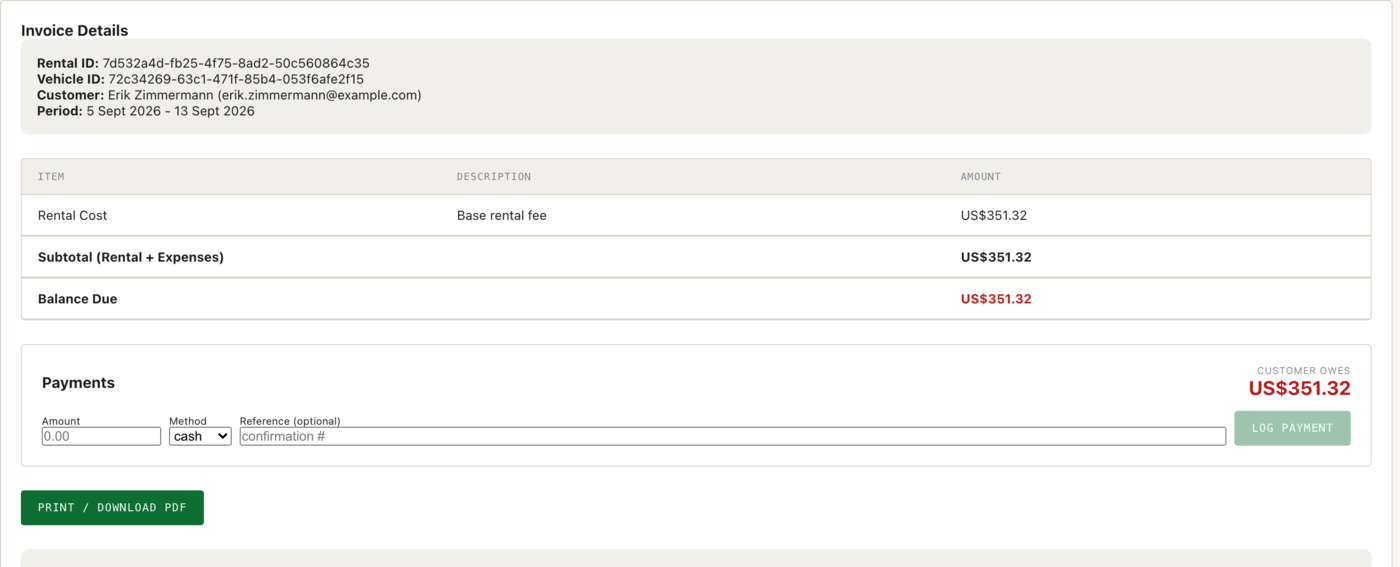
Note: Nothing is ever charged automatically. The invoice records what is owed and what you have collected; taking the money is your move. Emailing invoices is not available yet either — the page says so, and tells you to print or download the PDF and send it yourself.
Trip log
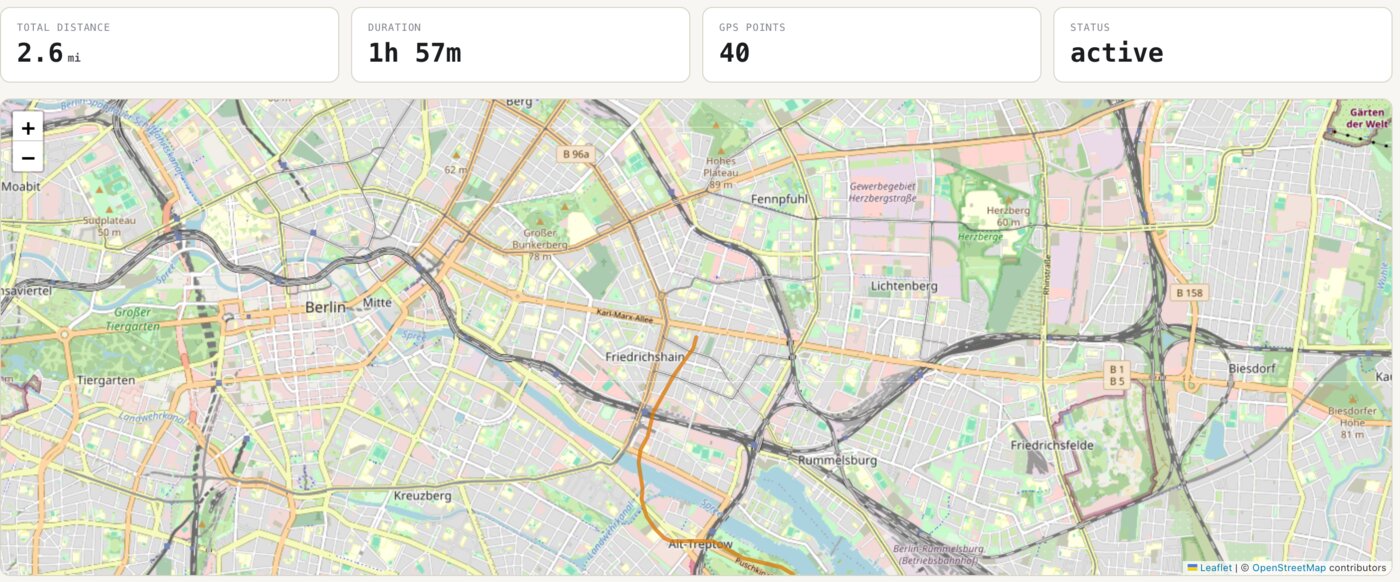
Check Trip Log shows the rental’s GPS trail on a map, with total distance, duration and the number of GPS points recorded. The raw point history is one click below the map. This is the same trail the toll auditor and the policy-breach sweep read from (see the Money chapter).
OBD2 stats
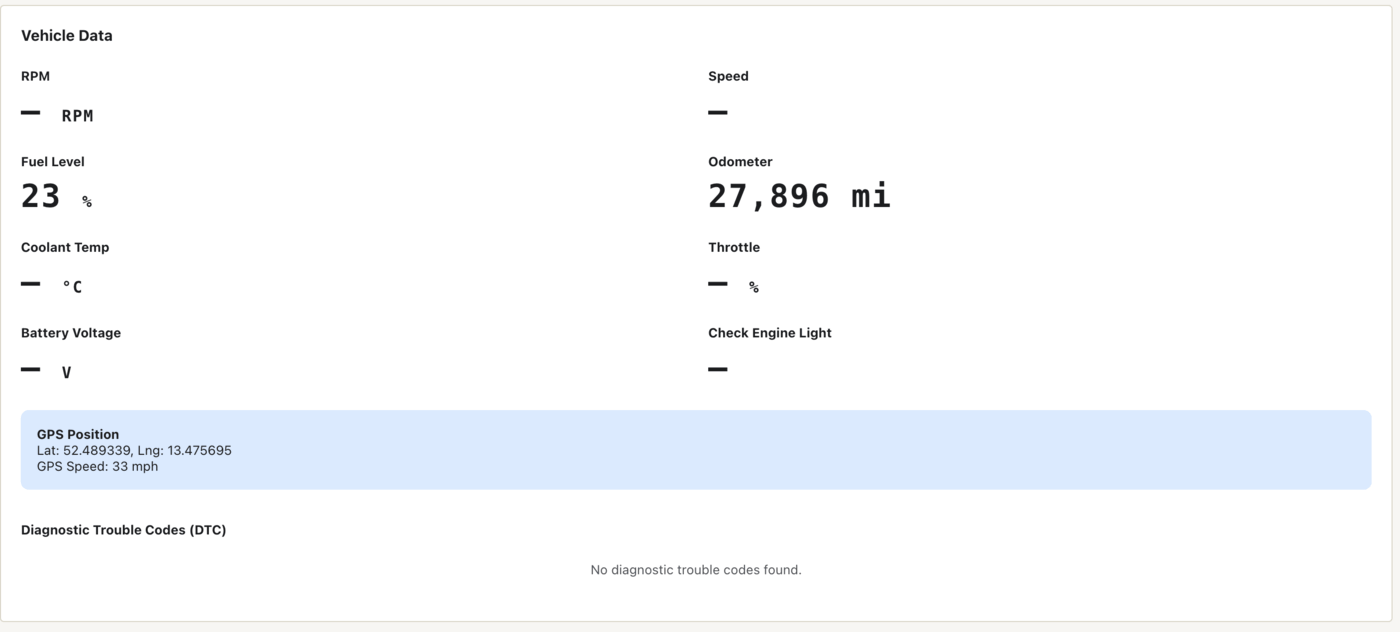
Check OBD2 Stats reads the car’s live vehicle data: RPM, speed, fuel level, odometer, coolant temperature, throttle, battery voltage, check-engine state, current GPS position, and any diagnostic trouble codes. Values the tracker has not reported show as a dash, not a guess.
Contact driver and driver history
Contact Driver shows the guest’s name, email and phone, and a message box. What you write appears on their trip page and they get an email with the link. Check Driver History shows every rental this driver has had with you — dates, vehicle, status and total — so you know who is picking up the keys before you hand them over.
The rental agreement
From the rental detail page, Generate Agreement produces the digital rental agreement; you then send the guest the signing link. The guest signs electronically, and the signer’s IP address is recorded with the signature. The signed agreement feeds the dispute evidence packet later if you ever need it.
The eligibility gate at activation
If you enable the eligibility gate, every activation is checked against: the do-not-rent list, licence expiry, name match between licence and booking, minimum age, and whether the deposit is held. When a check fails, staff activation is refused — the API returns a 409 — unless an admin explicitly overrides, and every override is written to the audit log. Self-service pickup has no override at all: if the gate says no, the guest cannot activate the rental from their phone.
Condition capture and damage comparison
Condition photos are guided: the app walks the photographer around the car angle by angle, and rejects a photo that will not be comparable later — wrong angle, unusable shot — at capture time, when it can still be retaken.
At close, the check-out photos are compared automatically against the check-in photos, angle by angle, and the AI produces a 0–100 damage-likelihood score. A high score is a prompt to look, not a verdict: nothing is charged on the strength of it. Suspected damage becomes a deduction suggestion against the deposit, which you accept or discard yourself.
Self-service checkout
The guest can do the whole handover from their phone through the rental’s guest link: sign the agreement, upload their licence, walk the condition-photo circuit at pickup, and repeat it at return. The same eligibility gate and the same photo guidance apply — the self-service path is not a softer path, it just doesn’t need you standing there.
Odometer by photo
Odometer readings can be captured by photographing the dash; OCR reads the number off the photo. Where the car has a connected tracker, the odometer also comes straight off the vehicle bus, so mileage is not just a number someone typed in.
Extensions
A guest can extend a trip (where you have enabled it) and you can extend one yourself. Extensions are conflict-checked against the calendar first — an extension never silently collides with the next booking. The extra days are charged as an addition to the existing total, never by re-quoting the whole rental, so promo codes, tolls and add-ons already on the rental are preserved exactly as they were.
Note: The killswitch button on the rental detail page immobilises the car remotely through a single audited path, and it reports the command’s real state — requested, sent, confirmed, or failed — not what you hoped happened. Use it deliberately.