Getting Started
Signing in
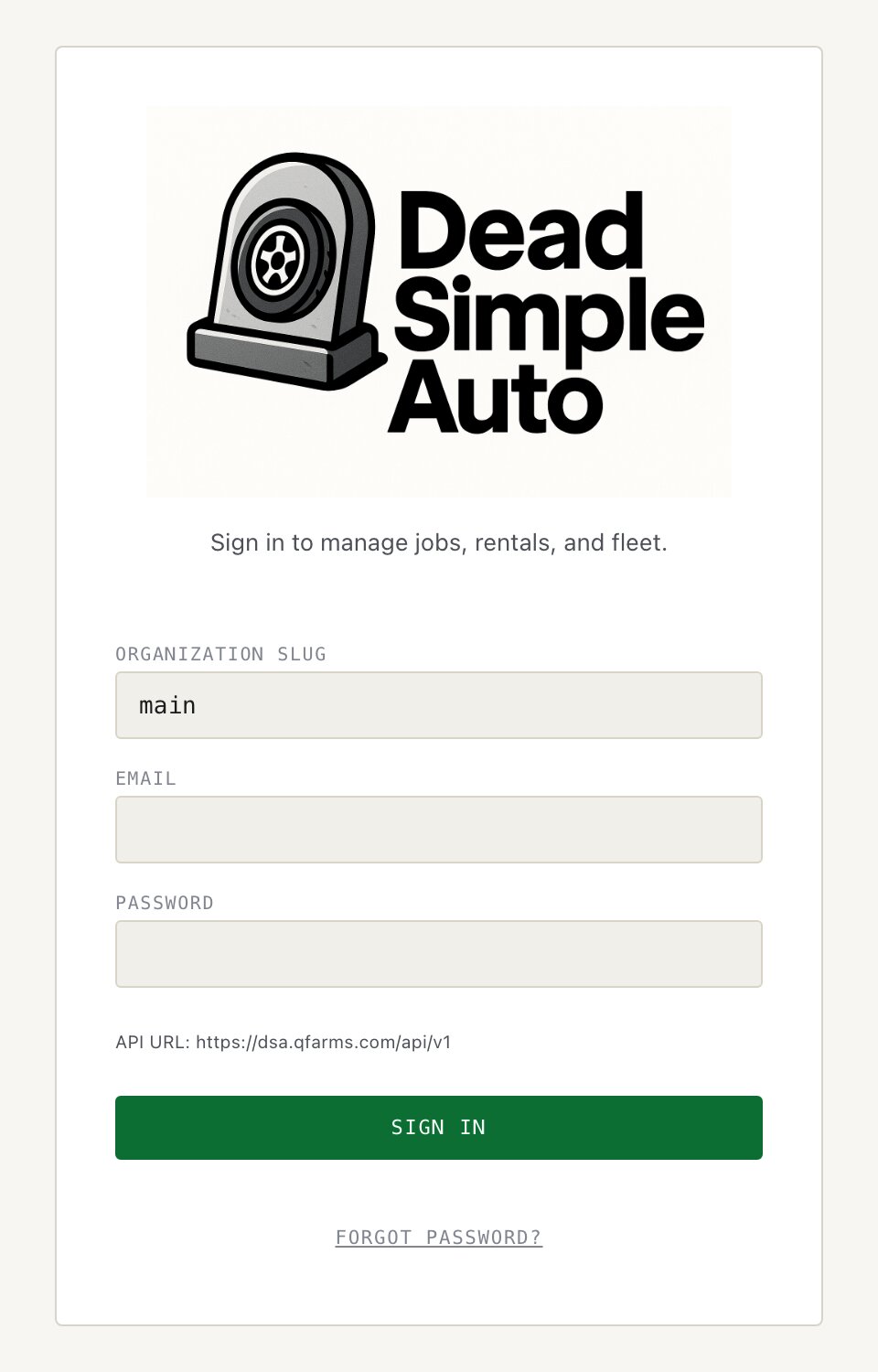
Dead Simple Auto is multi-tenant: one installation can host several
organizations, and each organization has a short identifier called a
slug. The sign-in screen therefore asks for three
things — your organization slug, your email, and your password. Your
slug was chosen when your organization was created; if you run your own
installation, the seed setup creates one called main.
The sign-in card also shows the API URL it is talking to, so if a login fails you can see at a glance whether you are pointed at the right server. There is a Forgot password? link below the button if you need a reset email.
Note: Only admin accounts land in the interface described in this manual. Staff accounts are taken to the simplified staff dashboard at
/staffinstead — see the Team section below.
The layout
After signing in you land on the Dashboard. Every page shares the same frame:
- Top bar — the product name, the name of the page you are on, a notification bell, a light/dark theme toggle, your account, and Log out.
- Sidebar — the navigation tree, described next.
- Content area — the page itself.
The sidebar starts with five pinned items that are always visible, in the order you tend to touch them during a day: Dashboard, Day Board, Jobs, Alerts, and Messages. Alerts and Messages carry live count badges, so an unread message or an active alert is visible from anywhere in the app.
Below the pinned items are five collapsible groups, organized by task rather than by database table:
| Group | What’s inside |
|---|---|
| Fleet | Vehicles, Map, Calendar, Breadcrumbs, Maintenance, Diagnostics, Trackers, Service providers |
| Rentals | Rentals, Bookings, Customers |
| Money | P&L, Reports, Receivables, Collections, Tolls, Toll auditor |
| Pricing & offers | Dynamic pricing, Promo codes, Referrals, Add-ons |
| Setup | Settings, Team, Usage policies, Workflows, Imports, Turo unmatched, Notifications |
The tree remembers which groups you leave open, and the group containing the page you are on opens automatically when you arrive. If you collapse a group while you are inside one of its pages, the collapsed header shows a dot so you can still tell where you are.
The Dashboard
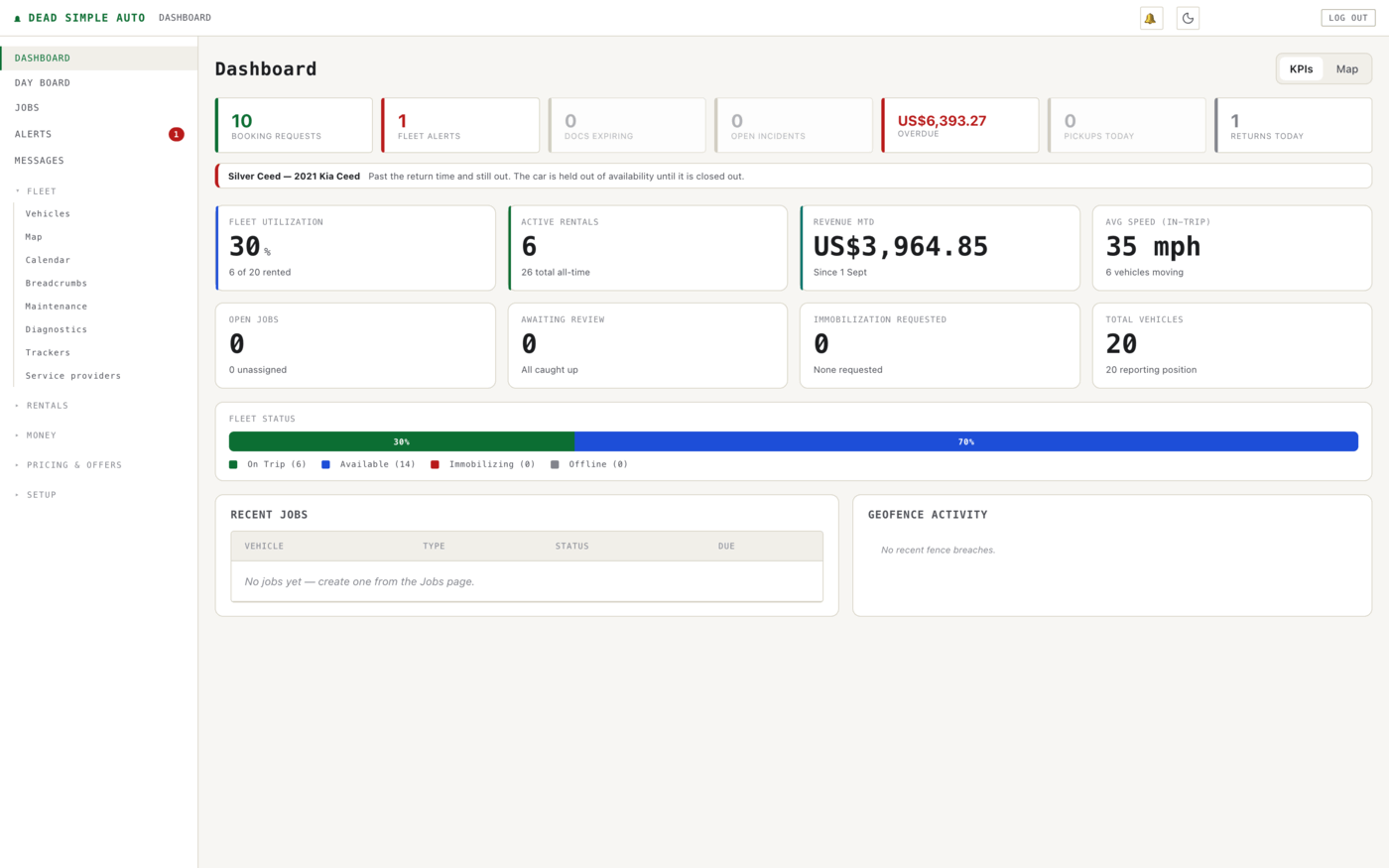
The dashboard leads with what needs attention today, not with vanity numbers. The top row is a set of counters — booking requests, fleet alerts, documents expiring, open incidents, overdue money, and today’s pickups and returns — and any counter that is zero is greyed out so the non-zero ones stand out. Directly below, anything genuinely urgent gets a banner: an overdue rental, for example, appears with the car’s name and a plain statement of what is wrong and what the software is doing about it.
Below the attention row come the operating numbers: fleet utilization, active rentals, revenue month-to-date, average in-trip speed, open jobs, items awaiting review, immobilization requests, and total vehicles, with how many are reporting a position. A fleet status bar shows how many cars are on a trip, available, immobilizing, or offline right now. The KPIs / Map toggle in the corner swaps the whole view for a live map of the fleet — the same map that lives under Fleet in the sidebar. Recent jobs and geofence activity round out the page.
The Day Board
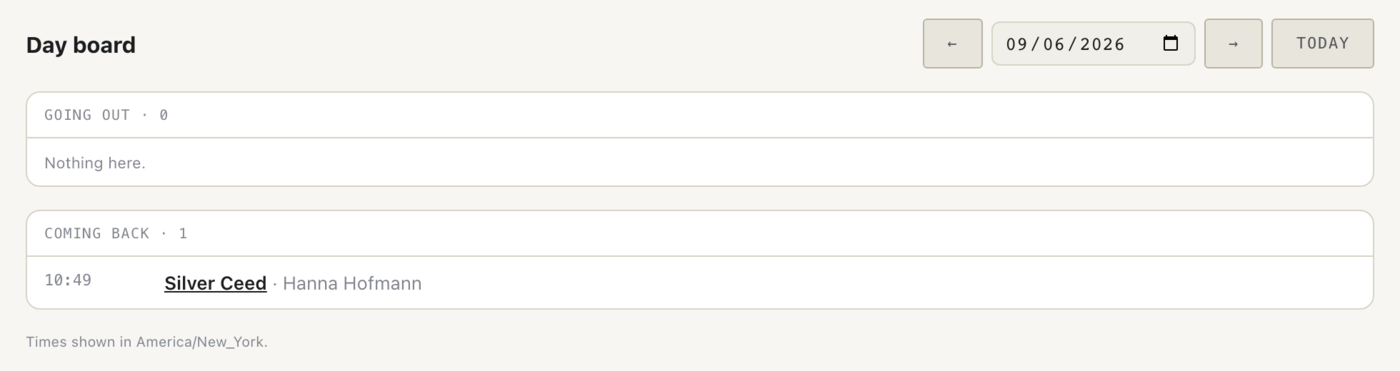
The Day Board is the morning question answered on one screen: which cars go out today, and which come back. It shows two lists — Going out and Coming back — each entry with its time, the vehicle, and the customer. Arrow buttons and a date picker move you to any other day, and Today brings you back. A footer states which timezone the times are shown in, so there is no guessing.
Alerts
The Alerts page collects live risks on cars that are out — overdue returns, low fuel, speeding, and the other conditions the fleet alert engine watches. Each alert shows what happened, which car, a severity level, and what the software is doing about it. Alerts are self-clearing: when the cause is fixed — the overdue car is closed out, the tank is filled — the alert goes away on its own. You do not dismiss alerts; you fix things. Push delivery for alerts is enabled under Settings, in the Fleet alerts section.

Messages
Messages is two-way chat with your team and, through the guest messaging features, with renters. Conversations are listed on the left with a search box; every organization starts with an org-wide channel. Unread counts appear on the conversation and on the Messages item in the sidebar, so nothing waits unseen. The bell icon on a conversation mutes notifications for that conversation only.
Your profile and password
Your profile page holds your photo (shown in chat and on the team page), your notification preferences — including a single switch to mute all push notifications on your phone — and your password.
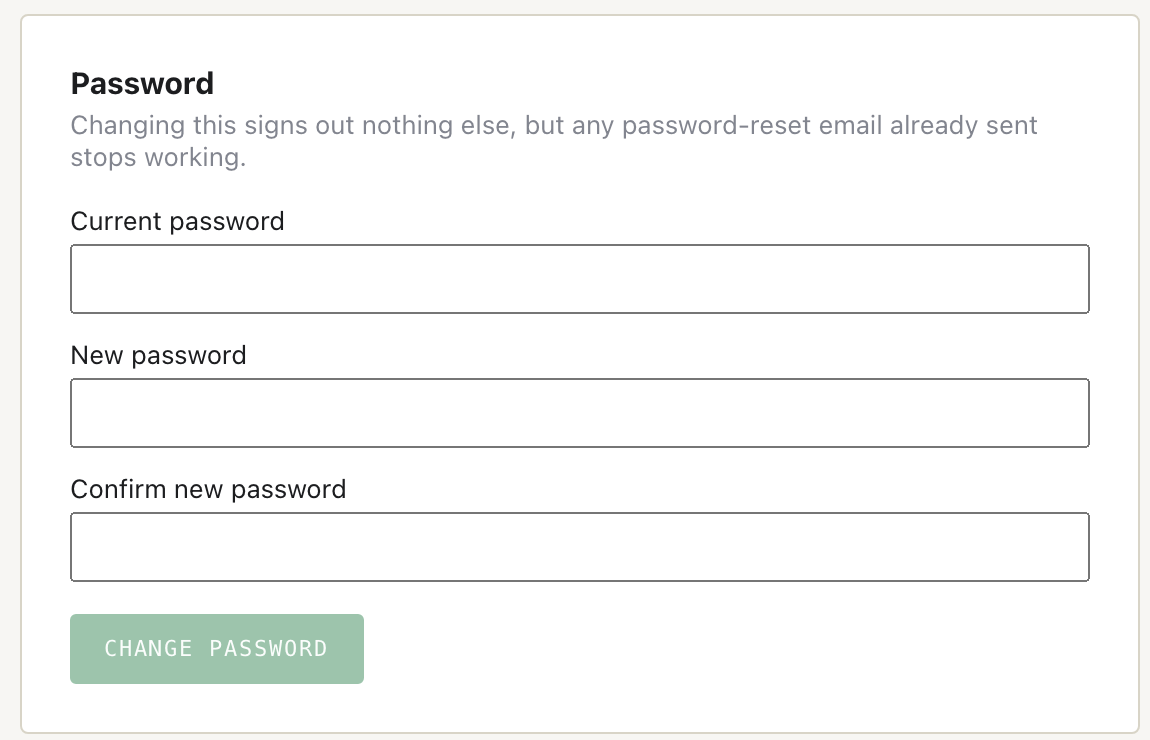
Changing your password requires your current password and a new one of at least 8 characters, entered twice. The page is blunt about the consequences: changing your password signs out nothing else, but any password-reset email already sent stops working.
Team
Team management lives under Setup → Team. The page lists every member of your organization with their role, status, last login, and the date they were added. + Invite staff adds a new member.
There are two roles. Admins get the full interface
in this manual. Staff get the staff dashboard at
/staff, where they claim and complete jobs — cleaning,
delivery, inspection — without access to money, settings, or customer
data beyond what the job needs. The field staff mobile app uses the same
staff accounts; see the Jobs & Workflows chapter for how work gets
assigned.
Note: You cannot demote or deactivate yourself from the Team page — your own row is marked “you” and managed separately, which prevents locking your organization out of its only admin account.