Maintenance and Operations
Renting the car out is half the business. The other half is keeping it roadworthy, turning it around between guests, and knowing who fixed what and what that cost you. This chapter covers the maintenance side: schedules, the work boards, checklists, parts, your shops, and the incident log.
Service schedules
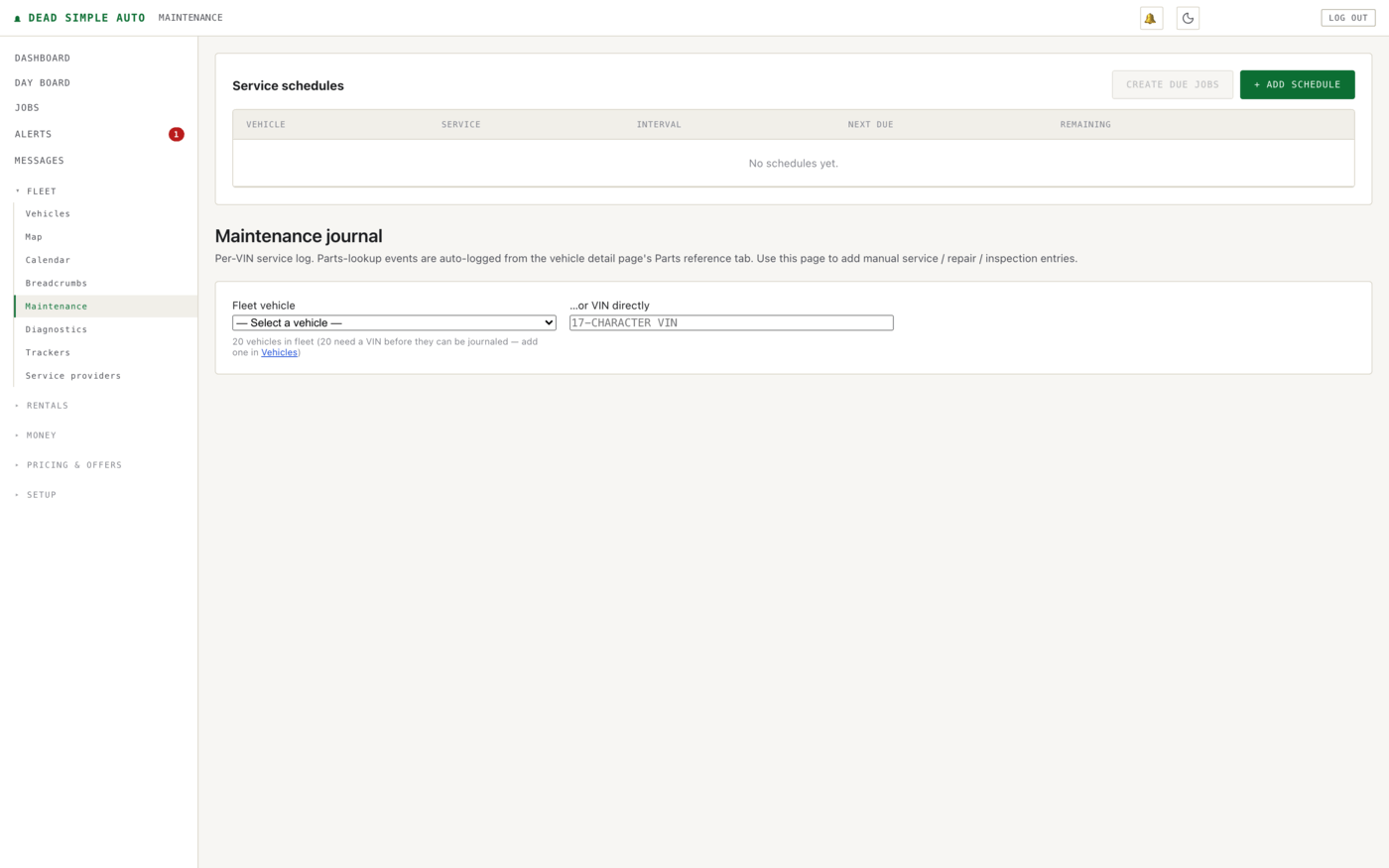
Maintenance lives under Fleet → Maintenance. At the top of the page is the Service schedules table: one row per vehicle and service, showing the interval, when it is next due, and how much mileage or time remains. Click + Add schedule to create one — a schedule can run on mileage or on the calendar, whichever fits the service. Because the software already knows how far each car actually drives — from its GPS tracker, falling back to rental odometer readings when the tracker is quiet — it forecasts when a mileage-based service will actually come due, not just what mileage it comes due at.
When a schedule falls due, Create due jobs turns it into a job on the Jobs board, so due maintenance becomes assignable work instead of a row you meant to look at.
Below the schedules is the Maintenance journal — a per-VIN service log. Pick a fleet vehicle (or type a VIN directly) and add manual service, repair, and inspection entries. Parts lookups (see Parts, below) are logged into the journal automatically.
Note: The journal is keyed by VIN. A vehicle without a VIN on file cannot be journaled — add the VIN on its Vehicles page first. The Maintenance page tells you how many cars are missing one.
The deferral-risk queue
A date-sorted maintenance list tells you what is oldest. It does not tell you what is expensive to ignore. The deferral-risk queue on the Maintenance page ranks outstanding work by money: severity × (estimated cost + downtime days × the car’s daily rate) × urgency. A cheap fix on a car that rents every day can outrank a costly one on a car that mostly sits, because every day in the shop is a day of lost rental income. Give each schedule an estimated cost, expected downtime, and severity to sharpen the ranking; sensible defaults apply when you have not.
Jobs and the day board
Jobs is pinned at the top of the navigation — it is the working list for whoever does the wrenching and the cleaning. Every job has a vehicle, a type, a status (Open, In Progress, Review, Closed), an assignee, and a due date, with live counts across the top and tabs to filter by status. Create jobs by hand with + Create Job, from due schedules, or from an imported workflow.

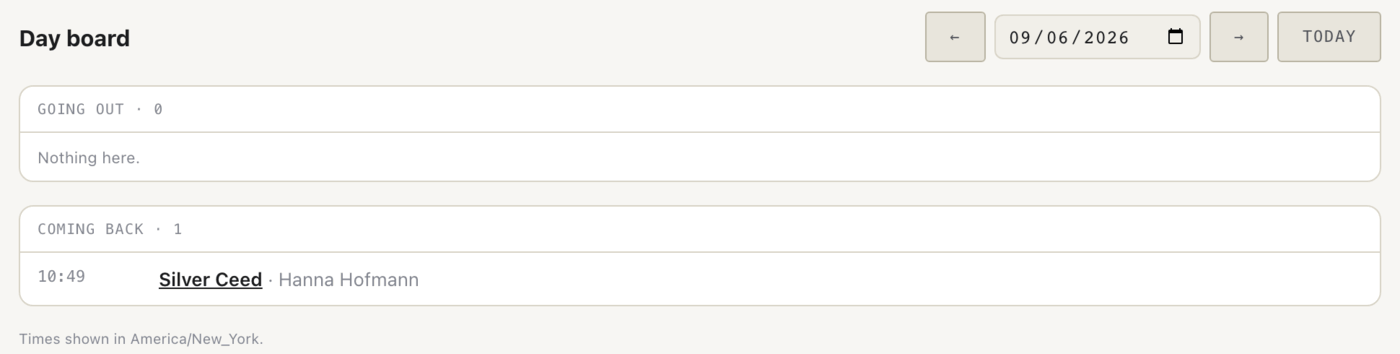
The Day board (also pinned) is the short version for the morning: which cars are going out and coming back on the chosen day, with times shown in your organization’s timezone. Step through days with the arrows or jump back with Today. The gap between a car coming back and going out again is your turnaround window — turn on turnover jobs in Settings and a car that re-rents within that window automatically gets wash and refuel jobs created for the incoming rental, with a flag when the turnaround is too tight to finish.
Workflow templates
Some jobs are the same every time — a turnaround, a pre-rental inspection. Under Setup → Workflows you keep repeatable checklists for those. A workflow is a job design imported from Dead Simple Jobs: export the design there, click Import workflow here (the same button appears on the Jobs page), and each job you create from it gets its phases from the design. The person doing the work steps through the same checklist every time instead of remembering it.

Blackouts while the car is in the shop
Flip on maintenance blackouts in Settings, and a maintenance job created from a due schedule places a blackout on its vehicle, which takes the car off every booking surface at once — your booking portal, fleet search, everything. When the job closes, the blackout clears itself. No guest can book a car that is on a lift, and you do not have to remember to un-block it.
Parts
Pick a vehicle in the maintenance journal and a Parts reference panel appears. Type what you are fixing — “oil change and front brakes” — and the software decodes the car’s VIN and returns the OEM and reputable aftermarket part numbers that fit that exact car. Numbers from the curated fleet catalog are marked verified; the rest are AI suggestions, labeled as unverified, for you to cross-check before ordering. The lookup deliberately stops at part numbers — no prices, no suppliers — sourcing the part is your job. Every lookup is logged into the car’s journal automatically, so the journal records which parts were being chased for which car.
Service providers
Fleet → Service providers is your directory of body shops, mechanics, and other providers — who you used, when, for what. Add your own with + Add provider, or use Discover providers to search a shared network of shops other operators use, by name or city. Each car’s own page gets a service timeline of the work done on it, with a before/after photo catalog for body work.
When a shop hands you a paper invoice, photograph it: invoice scanning reads it and drafts an unconfirmed service entry with the shop, date, and amounts filled in.
Note: The scan produces a draft, nothing more. It is never booked to your P&L until you confirm the entry — the software does not trust its own reading of a crumpled invoice, and neither should you.

Incidents and damage
Every ding, curb strike, and crash goes in the incident and damage log, which appears on the vehicle and on the rental it happened during. Classify each incident as insurable, self-pay, or guest-liable, and record the deductible, the claim status, and what you have recovered so far. If a claim has a subrogation deadline, the software raises an alert before it passes, so recoverable money does not expire quietly. A deductible-recovery report under Reports totals your outstanding recoverable exposure — see the Money chapter for how incidents feed deposit deductions and expenses.