Bookings, Pricing and Offers
This chapter covers the demand side: how guests book directly with you, how requests reach you, what stops a bad booking from landing, and the levers — pricing rules, promo codes, referrals, add-ons — that change what a booking is worth. The reporting side of the same money lives in the Money chapter; this is where you set things up.
Your direct booking portal
Every organisation gets a public booking page on its own link:
/book/<slug>. It is off until you turn it on — enable
it under Setup → Settings and mark each vehicle you
want shown as “list for booking”. Cars you don’t mark simply don’t
appear.
Booking behaviour is set per vehicle, not fleet-wide:
- Instant book — the guest picks dates and gets a confirmed rental immediately.
- Approve first — the request lands in your Bookings inbox and nothing is confirmed until you say so.
Before a guest commits, the portal shows a pre-consent panel: what is due now, what deposit hold applies, and which paid extras are on offer. The guest sees the real numbers before agreeing, not after. The portal also rate-limits requests and caps how many open requests a single contact can have, so one person cannot flood your inbox or camp on your calendar.
Note: The portal quotes and records charges — it does not process cards. Nothing anywhere in Dead Simple Auto charges a guest automatically; collecting money is always your explicit action. See the Money chapter.
The Bookings inbox
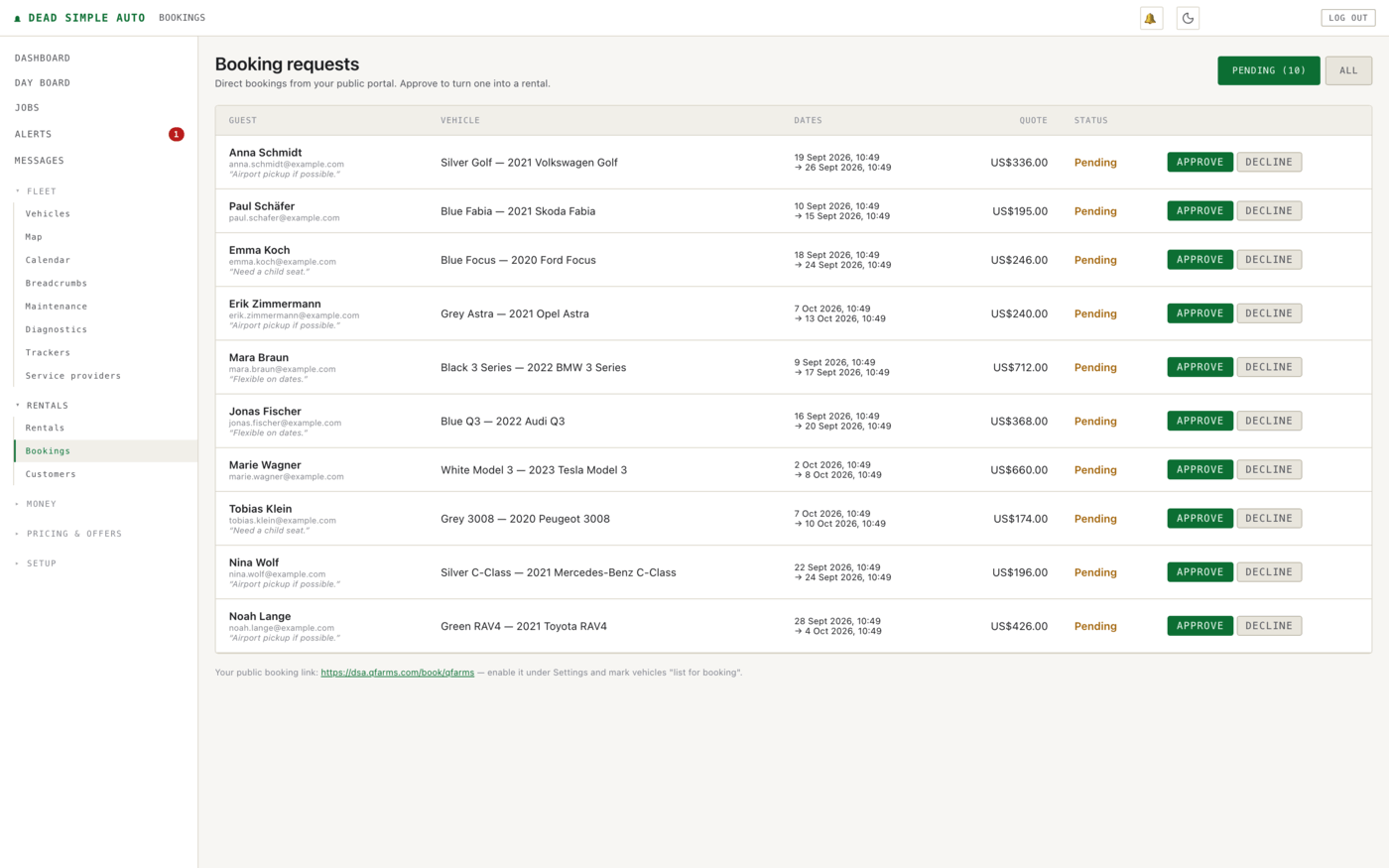
Requests from the portal arrive in Rentals → Bookings. Each row shows the guest, the vehicle, the dates, the quoted total and a status, with Approve and Decline buttons; a filter switches between pending requests and everything. Approving a request turns it into a rental — from there it follows the normal rental lifecycle described in the Rentals chapter. The page footer shows your public booking link so you always know what you are handing out.
The calendar and availability rules
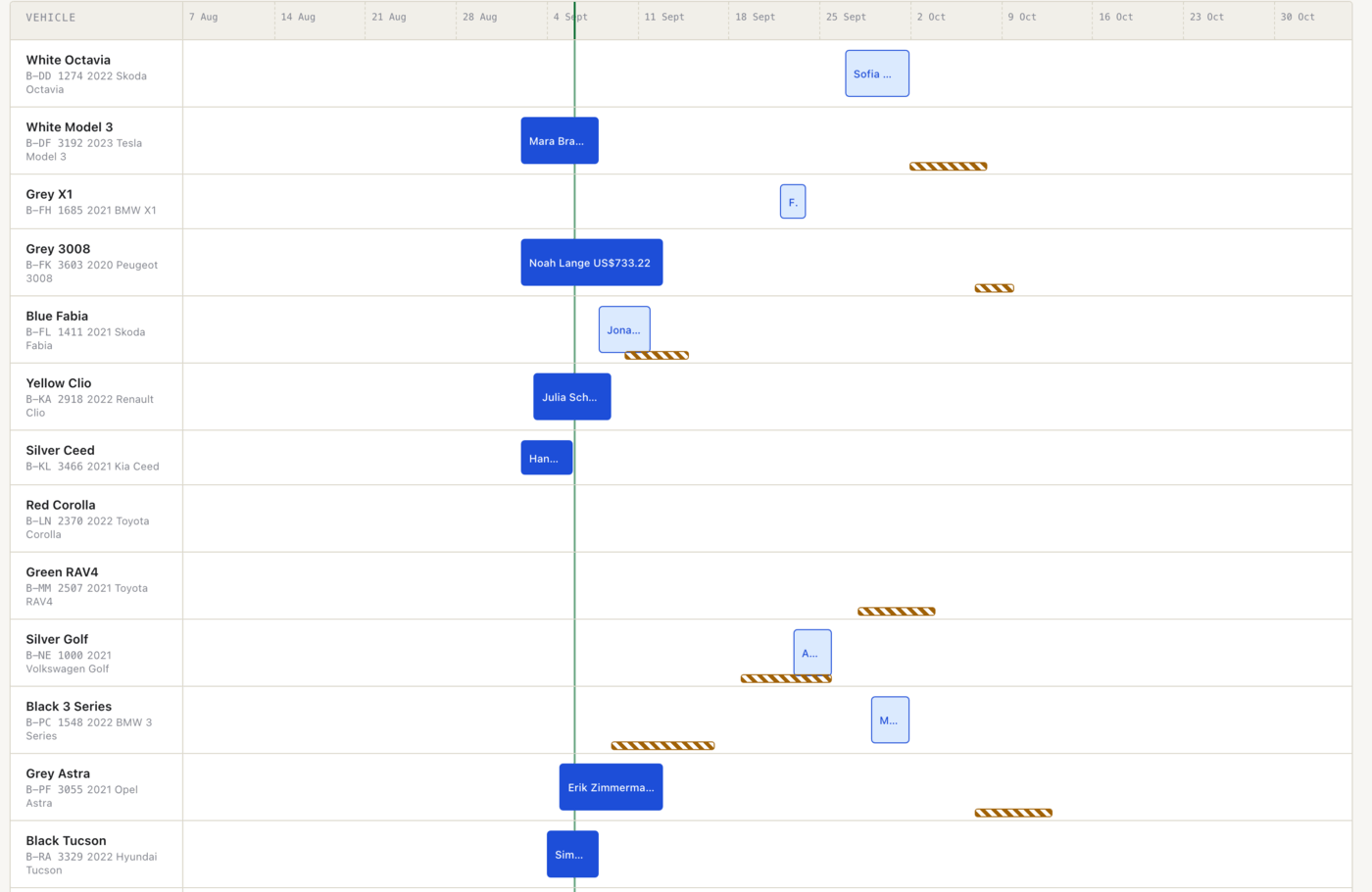
Fleet → Calendar is the availability picture: one row per vehicle across a rolling multi-month window, with confirmed rentals as solid bars, pending holds as pale outlined blocks, and blackouts as striped bars — booked, tentative and off-the-market at a glance.
Three rules decide what the booking surfaces will actually accept:
- Blackouts take a car off every booking surface at once — portal, search, widget, staff booking. A blackout can be manual or created automatically by a maintenance job, and a conflict with an existing rental raises an alert that clears itself when resolved.
- Minimum stay rejects requests shorter than your threshold. Staff can override it, but the override is audited, and the system keeps a log of what the rule turned away — so you can see whether the rule is earning its keep or just costing you bookings.
- The waitlist lets a guest ask to be told when a car frees up. When something changes — a cancellation, a blackout clearing — the waitlist re-checks real availability before notifying anyone. It does not send hopeful emails about cars that are still busy.
Pricing
The default is your flat daily rate per vehicle, and it stays that way unless you change something. On top of it you can layer:
- Pricing rules — seasonal rates, weekday/weekend differences, and length-of-stay discounts for longer trips.
- Dynamic pricing — found at Pricing & offers → Dynamic pricing, and off by default. When enabled, demand signals (utilisation, upcoming bookings, request velocity) nudge each car’s rate up or down within guardrails you set — the multiplier is clamped, so a busy weekend cannot triple your prices behind your back. It runs in two modes: suggest, where it proposes rates and you apply them, or auto, where it applies them itself. What the guest sees on the portal is always the same effective rate the quote uses.

Promo codes, referrals and add-ons
The rest of the Pricing & offers section is the discount and extras toolkit.
Promo codes (Pricing & offers → Promo codes) are shareable discount codes for your direct-booking page. A code has a type (percent or fixed), a value, and optional rules: minimum trip length, maximum uses, a validity window, and a first-timers-only flag. The description field is an internal note — guests never see it. The table shows each code’s rules and how often it has been used.

Referrals (Pricing & offers → Referrals) let existing guests share a link from their trip page. A new guest who books through it gets a discount on their first trip; the referrer earns account credit once that trip closes — not when it is booked. Both amounts are configurable in Settings, and the program is off until you turn it on there. The page tracks referred trips, referred revenue, credit awarded, and — bluntly — outstanding credit, which is your liability.

Add-ons (Pricing & offers → Add-ons) is your catalogue of paid extras — child seat, GPS unit, extra driver, delivery — each with a price and a unit (flat or per-day). Attach one to a rental and the amount folds straight into the rental total, so the invoice, receivables and P&L all see it without any extra bookkeeping on your part.
Cancellation policies
Cancellation policies come as presets, with a per-vehicle override where one car needs different terms. The important design decision: the refund base is frozen at booking time. A rental’s total is a moving target — add-ons, tolls and extensions land on it later — so a “50% refund” is 50% of what the guest agreed to at booking, not half of whatever the total has grown into since. The frozen record is kept with the rental, and you can still override a specific cancellation or settle it manually when the situation calls for judgement rather than a formula.
Note: A cancellation computes and records what is owed — the actual refund is a payment action you take yourself, covered in the Money chapter.