Administration
This chapter covers the parts of Dead Simple Auto you touch rarely but need to get right: organization settings, importing your history from other platforms, exports and statements, the audit trail, privacy compliance, and how your data is hosted. Most of it lives under Setup in the left navigation — a section deliberately kept apart from the daily screens. If you find yourself in there weekly, something is wrong.
Organization settings
Open Setup → Settings. The page starts with a Display toggle — 24-hour or 12-hour time, applied to times shown across the dashboard, including Breadcrumbs. Below it, three tabs: Organization, Parking Lots, and Geofences.
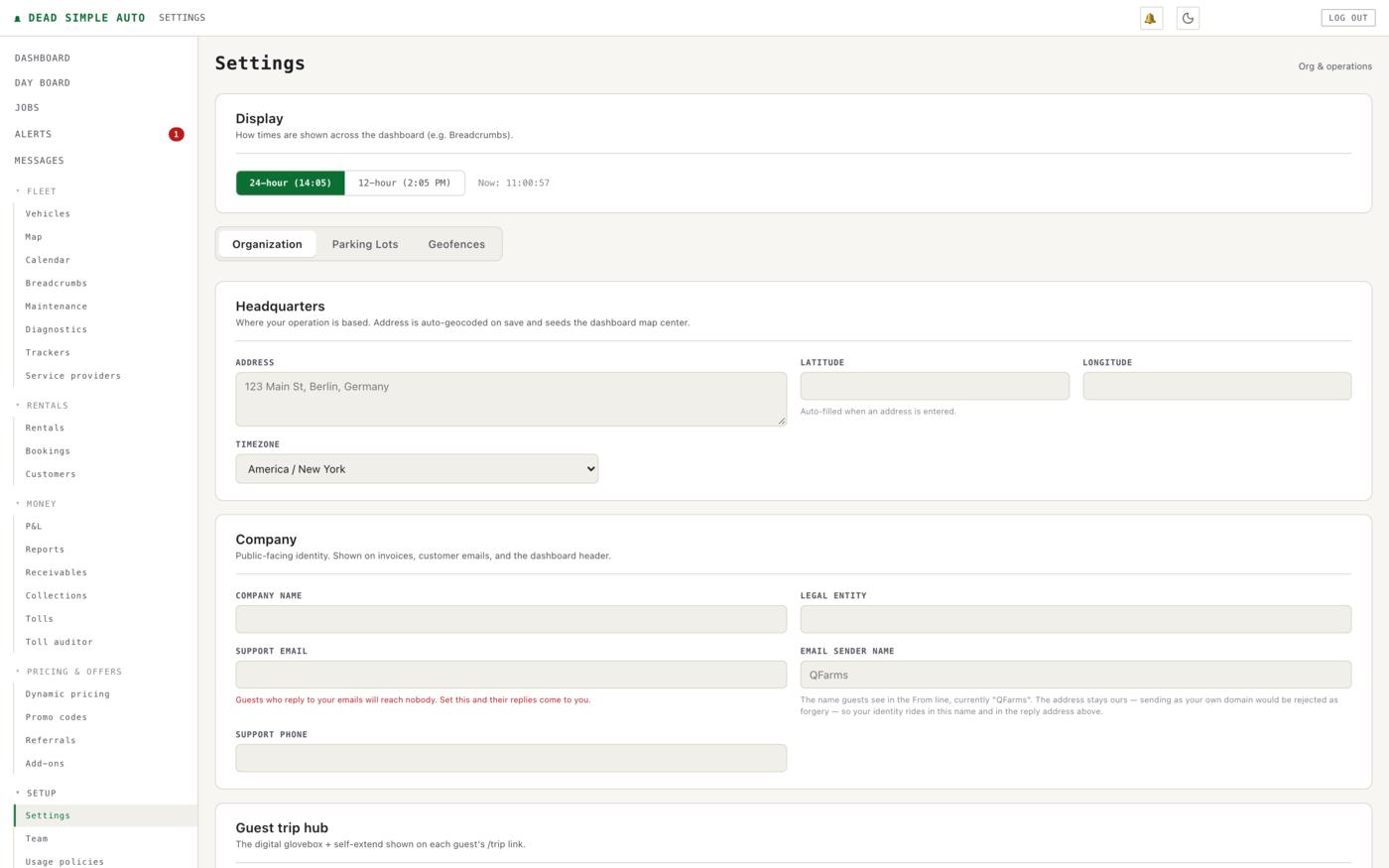
The Organization tab holds:
- Headquarters — your base address and timezone. The address is geocoded on save and seeds the dashboard map centre. The timezone matters more than it looks: everything is stored in UTC internally, and this setting decides how dates and times are displayed and which calendar day a toll, expense, or report row lands on.
- Company — the public-facing identity shown on invoices, guest emails, and the dashboard header: company name, legal entity, support email and phone, and the email sender name. The page is blunt about the support email: guests who reply to your emails will reach nobody until you set it.
- Guest trip hub — the digital glovebox and self-extend options shown on each guest’s trip link (see the Guests chapter).
Your market profile is also part of organization settings. Dead Simple Auto ships with 23 market profiles, each a bundle of defaults: currency, tax label (not everything is called VAT), units (miles or kilometres), date format, and locale. There is no “EU mode” switch — adding a country to the product is adding a profile. Picking your market sets sensible defaults; you can still adjust individual values afterwards.
The booking portal — your public direct-booking page — takes its identity from the Company panel here, while the instant-book versus approve-first decision is made per car (see the Rentals chapter).
Importing rental history
If you are coming from Turo or Getaround, you do not have to start from zero. Imported history feeds P&L, utilisation, and the win-back tools.
Two sources are supported, in two different places:
| Source | Format | Where |
|---|---|---|
| Getaround | Earnings CSV | Setup → Imports |
| Turo | Email export (mbox) | Fleet → Calendar, via the Import Turo mbox button |
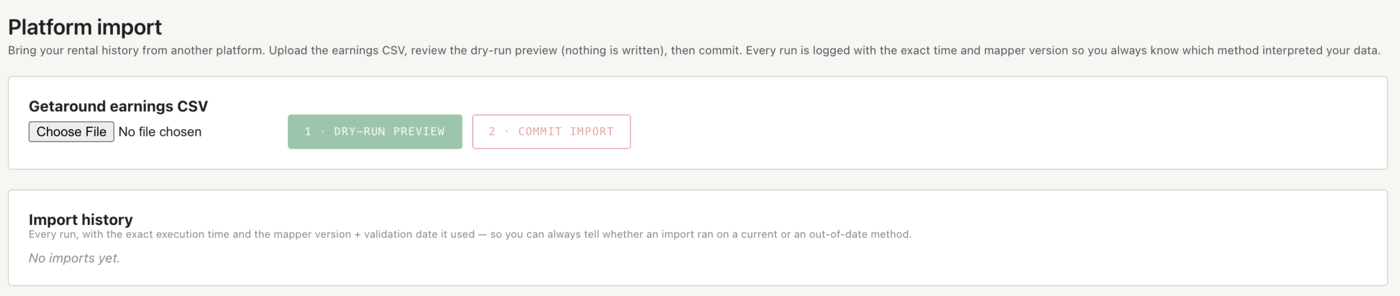
The Getaround importer on Setup → Imports is a two-step process, and the software refuses to make it one:
- Dry-run preview. The file is parsed and you see exactly what would be created. Nothing is written.
- Commit. The commit is content-hash bound to the dry run — it only proceeds against the exact file content you previewed. Swap the file between steps and the commit is refused.
Each run is logged in the Import history panel with the execution time and the mapper version it used, so you can always tell whether an old import ran on a current or out-of-date interpretation of the platform’s format. If the platform changes its CSV headers, the importer refuses the file outright rather than guessing.
The Turo import is a single upload rather than a two-step, but it is idempotent: re-uploading the same mbox produces zero new rows. Bookings that parse cleanly from your Turo emails but cannot be auto-matched to one of your vehicles by year, make, and model land on Setup → Turo unmatched. Pick the right vehicle for each row and the rental and customer records are created.

Note: Imports create history; they do not block availability. An imported past rental never fights your live calendar.
Reports and statements
Money → Reports is the export hub: pick a date range, download CSVs for your accountant or your taxes.
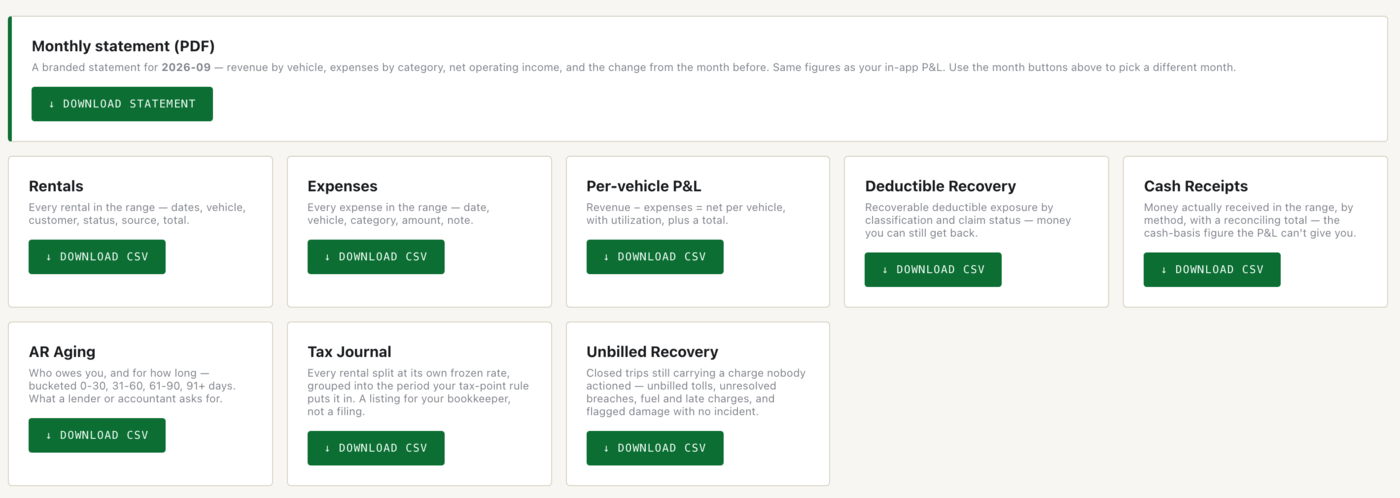
The exports include Rentals, Expenses, Per-vehicle P&L (with utilisation), Deductible Recovery (recoverable insurance exposure by claim status), Cash Receipts (money actually received — the cash-basis figure the accrual P&L can’t give you), AR Aging, a Tax Journal (every rental at its own frozen rate, grouped by your tax-point rule — a listing for your bookkeeper, not a filing), and Unbilled Recovery — closed trips still carrying a charge nobody actioned.
At the top of the page sits the Monthly statement, a branded PDF: revenue by vehicle, expenses by category, net operating income, and the change from the month before. It uses the same figures as the in-app P&L, so the PDF never disagrees with the screen.
The dispute evidence packet
When a guest disputes a charge or a platform asks you to prove your case, you can generate a dispute evidence packet from the rental’s detail page: one PDF fusing the signed agreement (with signer IP), the driving licence, the deposit ledger, incidents, tolls, mileage, damage photos with AI comparison results, and the GPS route as a drawn map. The finished PDF is hashed with SHA-256 and filed in the document vault, so you can later prove the document you sent is the document that was generated. A revocable public share link is available; revoking it makes the link dead, not just hidden.
The audit trail
Overrides write an audit event: eligibility overrides at handoff, minimum-stay overrides, refund overrides on a cancellation, manual cancellation settlements, photo-quality overrides on a job, and the resolution of a guest’s settlement dispute. This is not configurable, and that is the point — the trail exists precisely so it cannot be turned off on a bad day.
GDPR and data retention
For operators in the EU (or anyone who takes privacy seriously), three mechanisms are built in:
- Erasure and export are register-driven: every table holding personal data is enrolled in a central register, and the erasure and export routines walk that register. A newly added table cannot quietly escape them — it either declares how it handles personal data or the guard fails.
- Consent tracking records what a guest agreed to and when. Peer-benchmark contribution, in particular, does not happen without it.
- Trip-history retention is configurable per organization: GPS trails older than your retention window are removed on schedule.
Peer benchmarks
Benchmarks show how your utilisation and daily rates compare to similar fleets. They are strictly opt-in, and they are k-anonymous: cohort percentiles only appear once at least five distinct organizations contribute to a bucket, one org one vote, in coarse vehicle-class and region buckets. You see aggregates and your own value — never another operator’s numbers.
Hosting and your data
Dead Simple Auto is a cloud service, hosted and operated by us. There is nothing to install, patch, or back up on your side — infrastructure, updates, and backups are our job.
The data is still yours in every way that matters: every report exports as CSV, the monthly statement and evidence packets are PDFs you keep, and the GDPR tooling above — register-driven export and erasure — applies to your organization’s data on request, not just a guest’s.