Guests and Communication
A rental business is mostly a communication business with cars attached. This chapter covers everything Dead Simple Auto knows about the people who rent from you — their profiles, the do-not-rent list, messaging, the automated emails, the private in-trip page each guest gets, and how notifications reach you and your team.
Customer profiles
Open Rentals → Customers in the left navigation. Every person who has booked with you gets a row: name, email, phone, license, and the date they were added. You can search by name, email, or phone, and add a customer by hand with + Add customer.
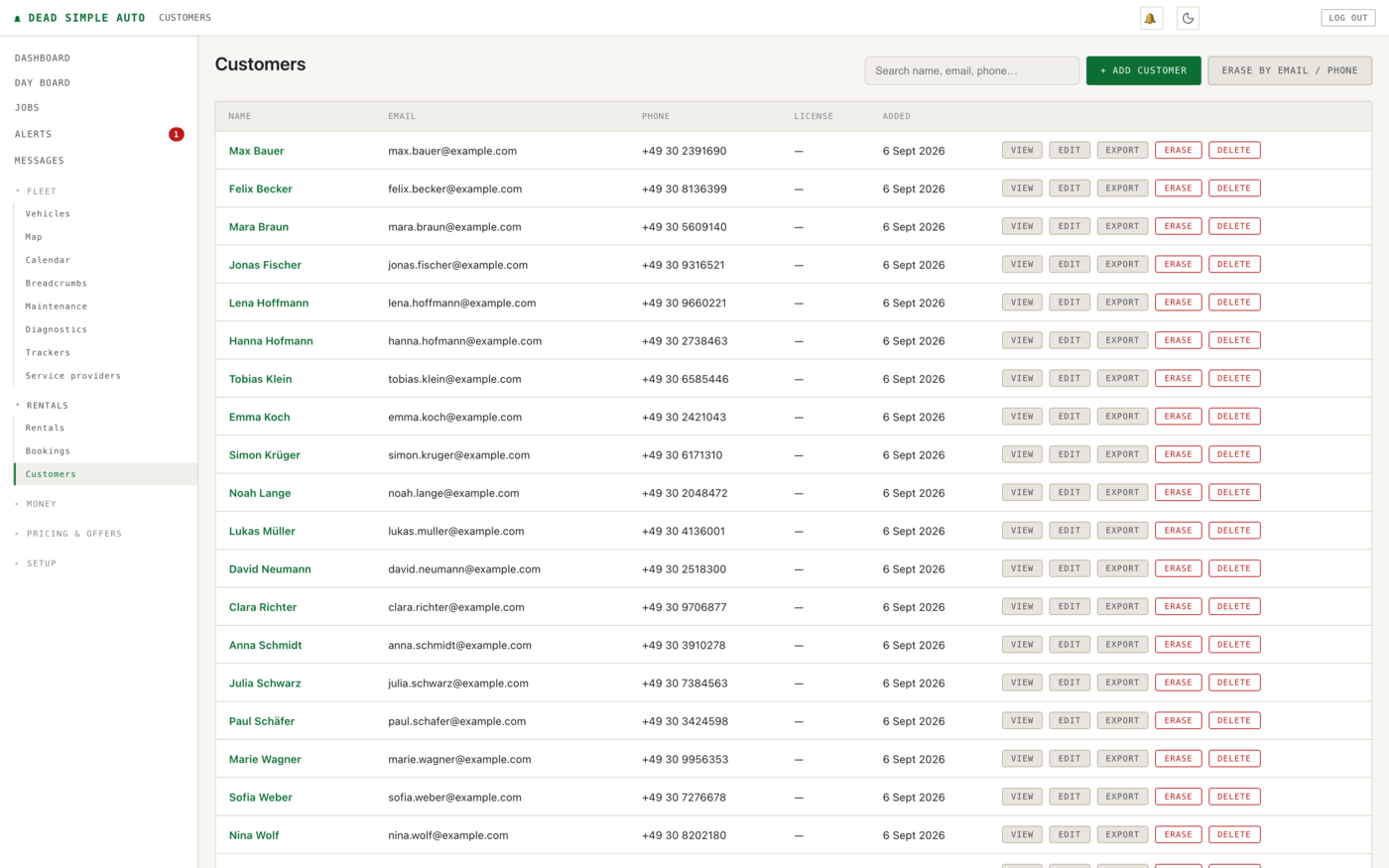
Each row carries five actions. View and Edit are what you expect. Export produces the customer’s data in a portable form, and Erase removes their personal data — both exist so you can answer a privacy-law request (a GDPR subject-access or erasure request, for example) without a support ticket. Delete removes the record outright. The Erase by email / phone button at the top handles the common case where someone emails you asking to be forgotten and you don’t want to hunt for their row first.
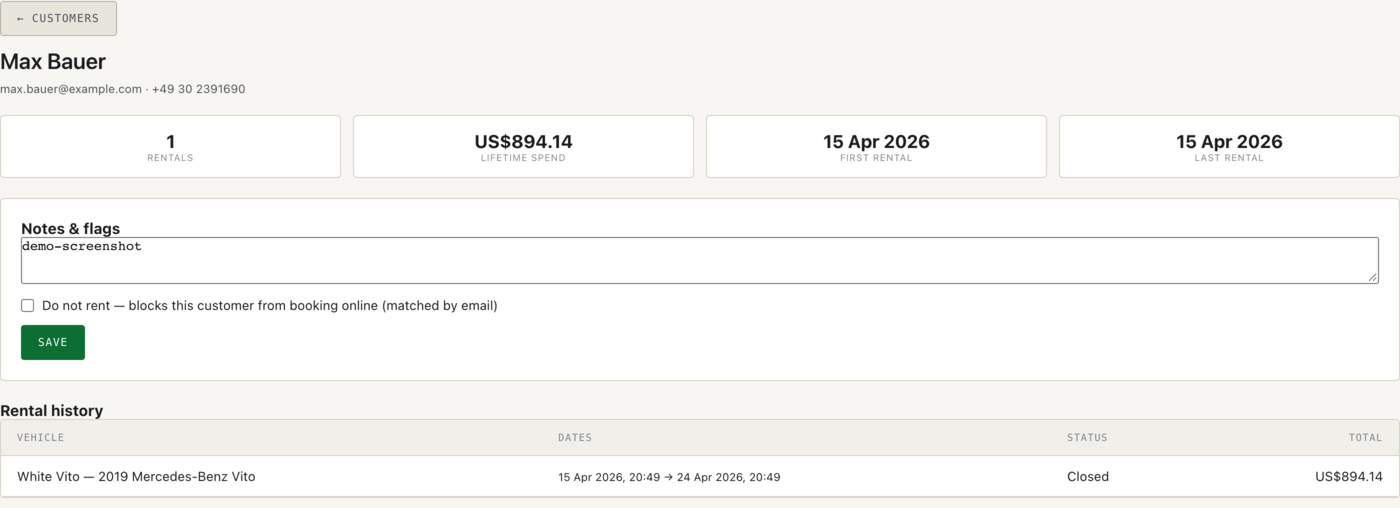
Click View on a customer to open their profile. The top of the page answers the questions you actually have when a repeat name comes in: how many rentals, lifetime spend, first rental, last rental. Below that is a free-text Notes & flags box and the full rental history — each past rental with vehicle, dates, status, and total.
The do-not-rent list
The Do not rent checkbox on the profile is the whole feature: tick it, save, and that customer can no longer book through your portal. Matching is done by both email and phone, so a blocked customer can’t come back in by typing the same phone number under a fresh email address. If you have the eligibility gate switched on, the flag is also one of its checks at handover, so a do-not-rent customer who somehow gets a booking created is still stopped before they get keys — staff can only proceed past it with an admin override, which is logged.
Note: blocking is quiet. A blocked guest who tries to book sees the ordinary “request received” message, and the request lands in your inbox flagged for you to decline — they are never shown a message telling them they are on a list. The block even survives an erasure request: erasure keeps a one-way hash of the contact details for exactly this check.
Messaging
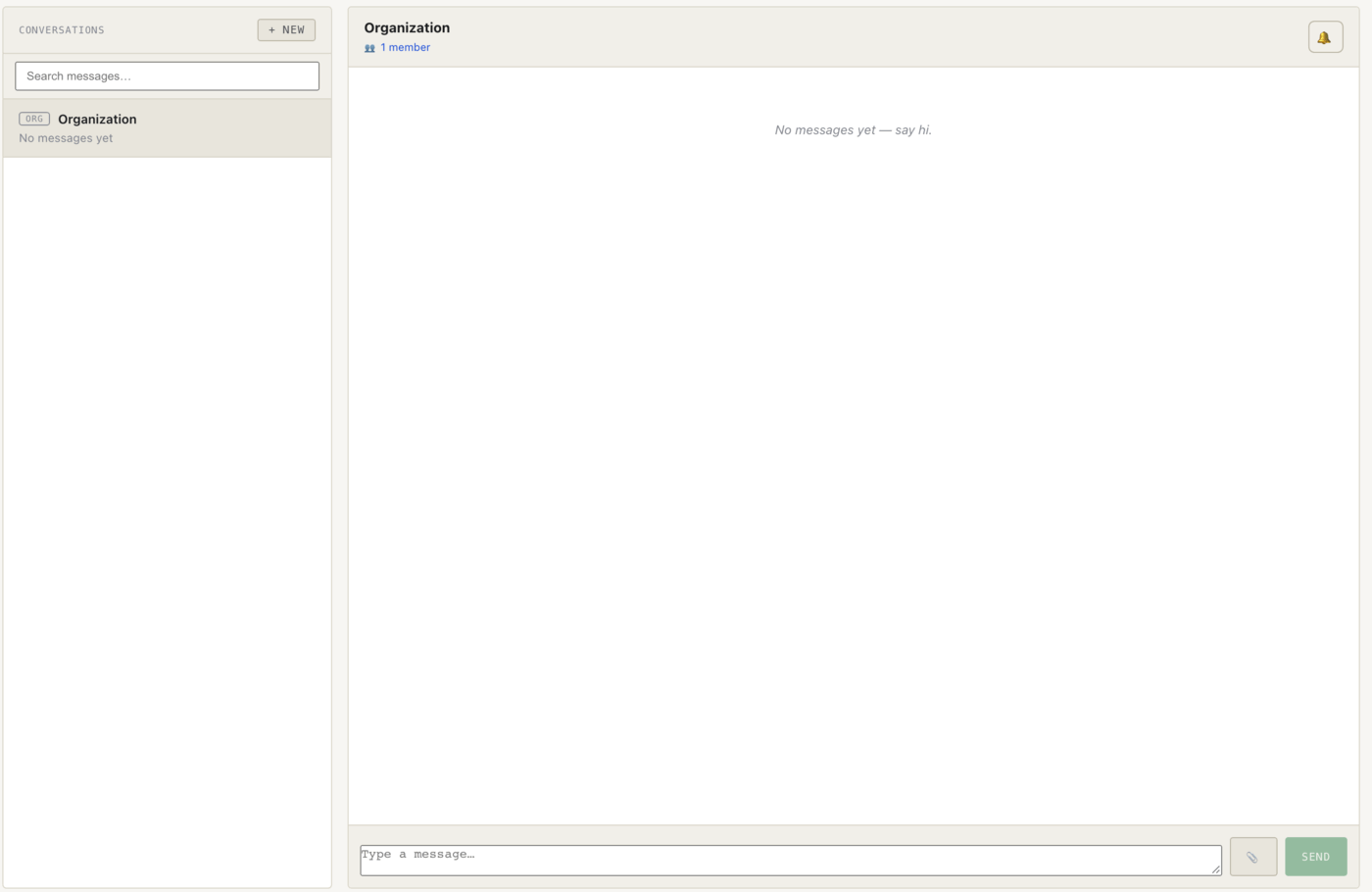
Messages sits in the always-visible block at the top of the left navigation, with a live unread badge. It is your team’s inbox, not the guests’: conversations on the left — an organization channel whose membership follows your team roster, plus per-vehicle, per-job, group, and direct threads — the open thread on the right, and a composer with an attachment button at the bottom.
Messaging a guest happens on the rental, not here. Open the rental (or the car on the fleet map) and choose Contact Driver: what you write appears on the guest’s private trip page, and the guest gets an email telling them a message is waiting, with the link to read it. Their replies land in the same thread and notify your admins. The guest never needs an account, an app, or your portal — just the link they already have.
Automatic guest emails
Some emails should never depend on you remembering to send them. Switch on lifecycle emails in Setup → Settings and Dead Simple Auto emails the guest a confirmation when their rental is created and a review request after it closes; a separate opt-in sends a roadside “report a problem” link when the trip starts. Also separate is the win-back sweep, which emails lapsed customers whose last trip ended a configurable number of days ago (60 by default). All of these are plain transactional emails, not a marketing platform — the point is that no guest is ever surprised by their own rental.
Review requests feed the reviews system: guest reviews and testimonials can be published to your direct-booking portal, so the social proof you earn actually shows up where your next guest is deciding.
The in-trip hub
Every active rental has a private guest page on an unguessable link — no account, no password, no app to install. On it the guest finds:
- Vehicle facts — what they’re driving and what they need to know about it.
- Access, return, and roadside instructions, written by you once as templates.
- One-tap message host, which posts into the trip’s message thread and notifies your admins — you answer from the rental’s Contact Driver screen.
- Extend my trip (if you enable it) — the extension is conflict-checked against real availability, and the extra days are charged as an addition to the existing total, never a re-quote, so promo codes, add-ons, and tolls already on the rental are preserved. Depending on your per-vehicle setting it either confirms instantly or arrives as an approval request.
- Roadside problem reporting — flat tire, dead battery, fuel, accident, locked out — with photos and the phone’s GPS position attached automatically.
Note: a guest roadside report is quarantined. It becomes an incident marked as guest-reported, with no cost attached, and it is excluded from every automatic charge, deduction suggestion, and alert until an admin reviews it. A guest cannot bill themselves, and a guest cannot bill you.
After the rental closes, the settlement statement you publish appears on this same link: an itemized breakdown of what the guest was charged, with a per-line “question this charge” route that lands as a dispute notification for your admins. Publishing is your explicit action — nothing is charged by publishing, and nothing is sent automatically unless you have opted into close-out automation, which can publish a clean return’s settlement for you. See the Money chapter for how the numbers are built.
Note: every guest-facing page — the booking portal, the in-trip hub, self-service checkout, the settlement — is available in English, Spanish, French, German, and Portuguese. Your admin interface is English.
Notifications
Setup → Notifications is where notifications land and where you tune them. The page shows everything that has been sent to you, with an All / Unread filter and a Preferences button for controlling what you receive.

Notifications carry a severity, and delivery follows it: routine events land in-app (and as a push, if pushes are enabled) and can be muted per type under Preferences, while critical ones — a settlement dispute, a car that never came back, a guest broken down at the roadside — are also emailed to every admin and cannot be muted. The bell icon in the top bar shows unread notifications from anywhere in the app; the Alerts entry in the navigation is a different thing (self-clearing fleet alerts about cars and money), covered in the Running the Business chapter.